Answer customers in the inbox
Where your team spends the day: replying, sharing out work and closing it off.
The inbox at a glance
The list on the left is every conversation on your numbers, newest first. Choose one and the whole conversation opens beside it, with the reply box underneath.
The filters along the top narrow the list:
- Mine and Unassigned: conversations given to you, and ones nobody has yet.
- Closing soon: customers whose reply window has under four hours left.
- Unread, Snoozed and Resolved.
Search finds names, numbers and words in messages. If your team is split into teams, a second filter shows one team’s conversations.
When someone else has the same conversation open, or is typing a reply to it, Sema says so, so two people do not answer the same customer.
The 24-hour window
WhatsApp’s central rule: when a customer writes to you, you have 24 hours to reply with anything you like: words, pictures, voice notes, documents, buttons. Each time they write again, the 24 hours start again.
Above the reply box, Reply window counts down the time left. When it reaches zero it says Closed, and from then on the only thing WhatsApp will deliver is a template Meta has approved, which is charged. See writing after the window closes.
Replies inside the window are the cheapest messages you send, and the first 1,000 a month on each number are free. See what each message costs.
Replying
Type in the reply box and press Send. Under the box Sema shows what the message will cost before you send it: Free while the window is open, or its price.
- Attachments: the paperclip, or Send file, for photos, videos, documents and voice notes.
- Saved replies: type / and choose one; see saved replies.
- Reactions: react to a customer’s message with an emoji, as on your phone.
A message that could not be delivered is marked Failed, with Meta’s reason, and its cost is returned to your credit.
Writing after the window closes
Once the window is closed, choose the Template tab. Pick an approved template, fill in its blanks under Fill in, check the Preview, and press Send for …. The price is on the button.
When the customer answers, a new 24-hour window opens and you can write freely again.
Internal notes and saved replies
Internal note writes something only your team sees: who promised what, what the customer ordered last time. Notes sit in the conversation, marked, and never reach the customer.
Saved replies are the answers you type every day: opening hours, delivery charges, the M-Pesa till number. Make them in Settings → Saved replies → + New reply with a shortcut, a name and the words. In the reply box, type / and part of the shortcut, and choose. They can fill in {{name}}, {{first_name}}, {{phone}} and {{agent}} (the person sending). Owners, admins and managers make them; everyone who replies can use them.
Sending later
Send later beside the reply box schedules a message for a time you choose, in your workspace’s time zone, from a minute ahead to 30 days.
- Plain words can be scheduled only for a time the reply window will still be open. For later than that, schedule a template.
- It is checked again when it is due: someone who opted out in the meantime does not get it.
- It is charged when it goes, not when you schedule it.
- Waiting messages are listed in the conversation; Cancel stops one.
Assigning and teams
Assigned to, above the conversation, gives it to one person (yourself included) so everyone knows whose it is. Team puts it with a team.
New conversations can be shared out automatically, in turn, to whoever is taking conversations. That is switched on in the Team page; see sharing out conversations. When it is on, a Taking conversations / Away switch appears in the inbox: set yourself away when you step out, and new conversations skip you.
Watching the whole team live
Owners, admins and managers have Live in the menu: every conversation in progress on one page, read again every 15 seconds.
- How many customers are waiting for a reply, how many of them have nobody on them, and the longest wait, counting up as you watch. A wait past 15 minutes turns red.
- Everyone on the team: who is online, how many conversations each has and how many of those are waiting, and which conversation each is looking at or writing in.
- Each conversation: the customer, who has it, its team and number, what was said last, whether a flow or the AI is on it, and whether the 24 hours have passed.
From there, Take over gives a conversation to you, the list beside it gives it to someone else, and Note leaves a note for the team that the customer never sees. Open takes you to it in the inbox.
Snoozing and resolving
Snooze hides a conversation until later (For 1 hour, For 3 hours, Until tomorrow, 08:00 or Until Monday, 08:00) and brings it back then. Wake now brings it back early. If the customer writes in the meantime, it comes back at once.
Resolve when it is dealt with. If your workspace keeps reasons (Settings → Workspace → Why conversations are resolved), choose one under Resolve as…; Analytics counts them. A resolved conversation reopens by itself when the customer writes again, or with Reopen.
Drafts and summaries with AI
If AI drafts are switched on for your workspace:
- Draft with AI puts a suggested reply in the reply box, written from the conversation and what your business has written down. Read it, change it, and send it yourself. You are sending your own reply.
- Summarise with AI sums up a long conversation for whoever picks it up.
Owners and admins switch this on, and decide whether AI may answer on its own, in Settings → AI. See letting AI answer.
The customer’s card
Beside the conversation (behind About on a narrower screen), the customer’s card shows what you need without asking them again: what they have paid in the chat, their last order, when they became a customer and last wrote, how many conversations and messages, whether they agreed to offers and news, and their tags. The full record is one click away in Contacts.
Chat on your website
A chat in the corner of your own website, answered from the same inbox. What visitors write arrives beside your WhatsApp conversations, marked Website chat, and your team and your assistant answer it there. It has no 24-hour window and costs nothing: the visitor reads your answer in the chat, on your site. Your away message, welcome, keyword replies and flows answer visitors there too, and a flow's buttons appear in the chat for them to tap.
- In Settings → Website chat, give the chat a name, a greeting and a colour, and press Make the chat. Owners and admins set it up.
- Copy the one line Sema gives you into your website, just before the end of the page. WordPress, Wix, Shopify and most site builders have a place for it, often called custom code or footer scripts.
- The chat's button appears in the corner of every page that has the line.
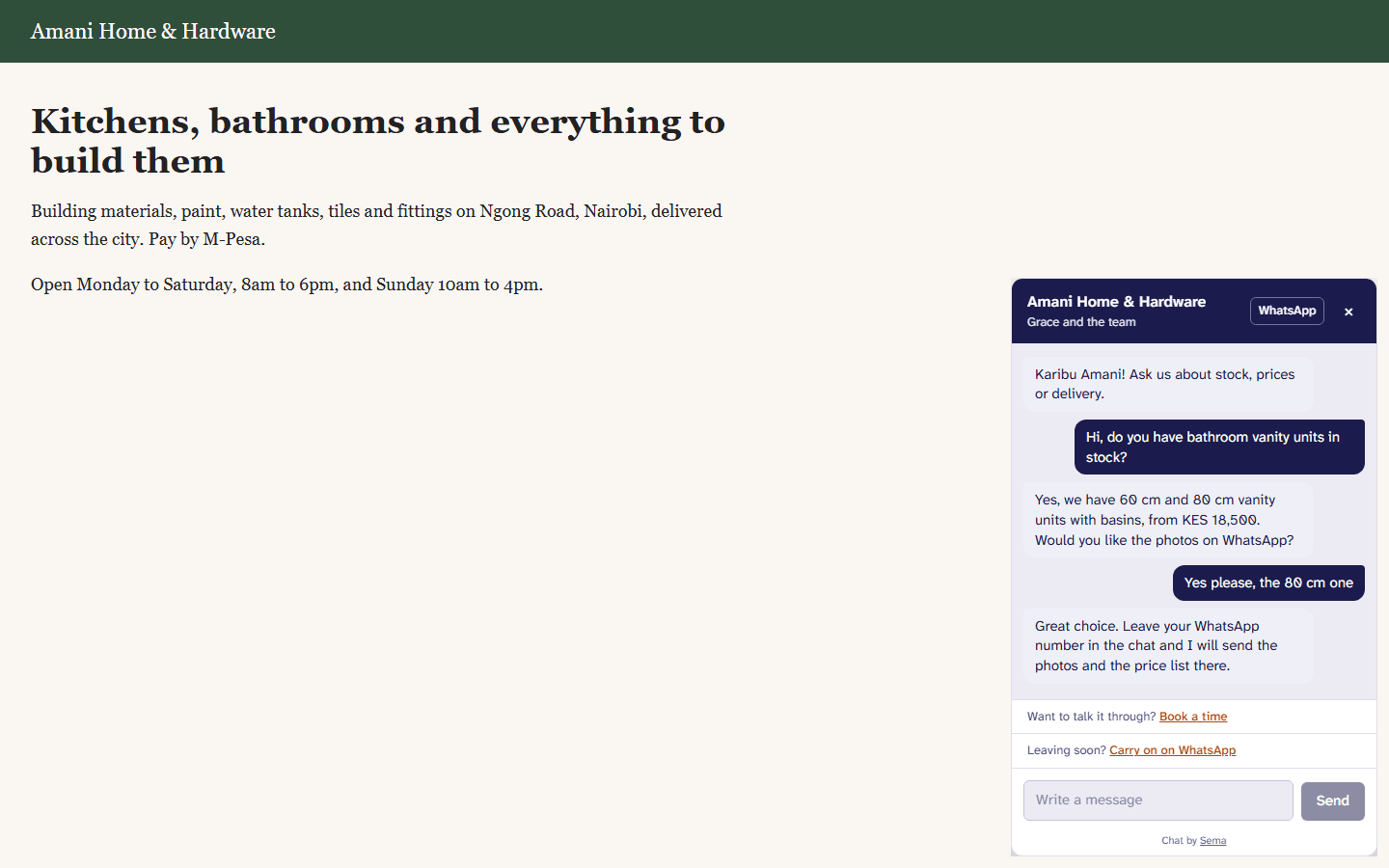
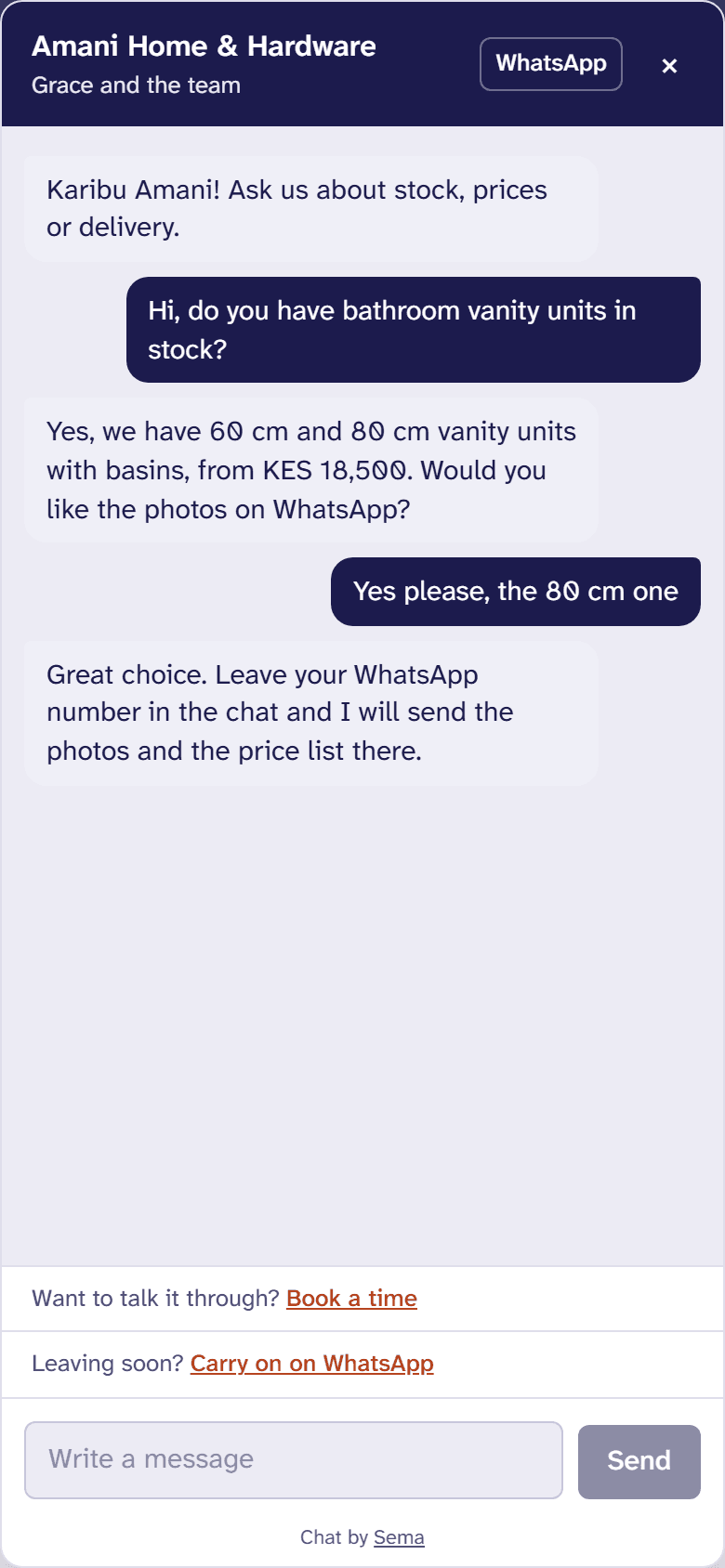
A visitor can leave their WhatsApp number to carry on there. Nothing is ticked for them: the chat shows, in your lead form's own words, what tapping Carry on on WhatsApp agrees to, and tapping it is their yes. If you already have them as a customer, the website conversation joins their history; if not, they become one. The lead form you chose welcomes them on WhatsApp, and a deal can go on your pipeline. Until they leave a number, a visitor is in no campaign and no follow-up: those are WhatsApp's.
Under Who answers, under the name the chat can say who is there, for example your name and the team's, and it can show your WhatsApp number for visitors who would rather write there. The page a visitor started on is kept on the conversation, and the team is told it when they leave their number; their site becomes a tag, such as site:yourbusiness.co.ke, so you can see which pages and which sites bring in business.
If you take bookings (Appointments), the chat offers Book a time: the visitor chooses what to book, a day and a free time, and gives their name and WhatsApp number. The confirmation and reminders go on WhatsApp. A button on your own site can open the chat straight at one service: give it data-sema-book="Consultation"(the service's name), so “Book a demo” books one. A button with data-sema-message="..." opens the chat with those words sent.
Instagram and Messenger
In Settings → Instagram & Messenger, an owner or admin presses Connect a Facebook Page, signs in to Facebook and chooses the Page. Messages to the Page on Messenger, and to the Instagram account linked to it, then arrive in the inbox beside WhatsApp, marked Messenger or Instagram. Your team, your automations and your assistant answer them there, and nothing is charged.
Meta’s rules are different from WhatsApp’s. Anyone may answer within 24 hours of the person’s last message. After that, only a person on your team can, for up to seven days, and never with an offer; after seven days, nobody can until they write again. There are no templates or campaigns on Instagram and Messenger.
A comment on one of your posts can be answered in private: turn on Answer comments on posts with a private message, choose the words to look for (or none, for every comment) and write the message. Each person who comments gets it once, and their answer starts a conversation in the inbox.
Not what you needed? Ask us.