Opening an account, step by step
From signing up to your first campaign, a picture for every step.
Sign up
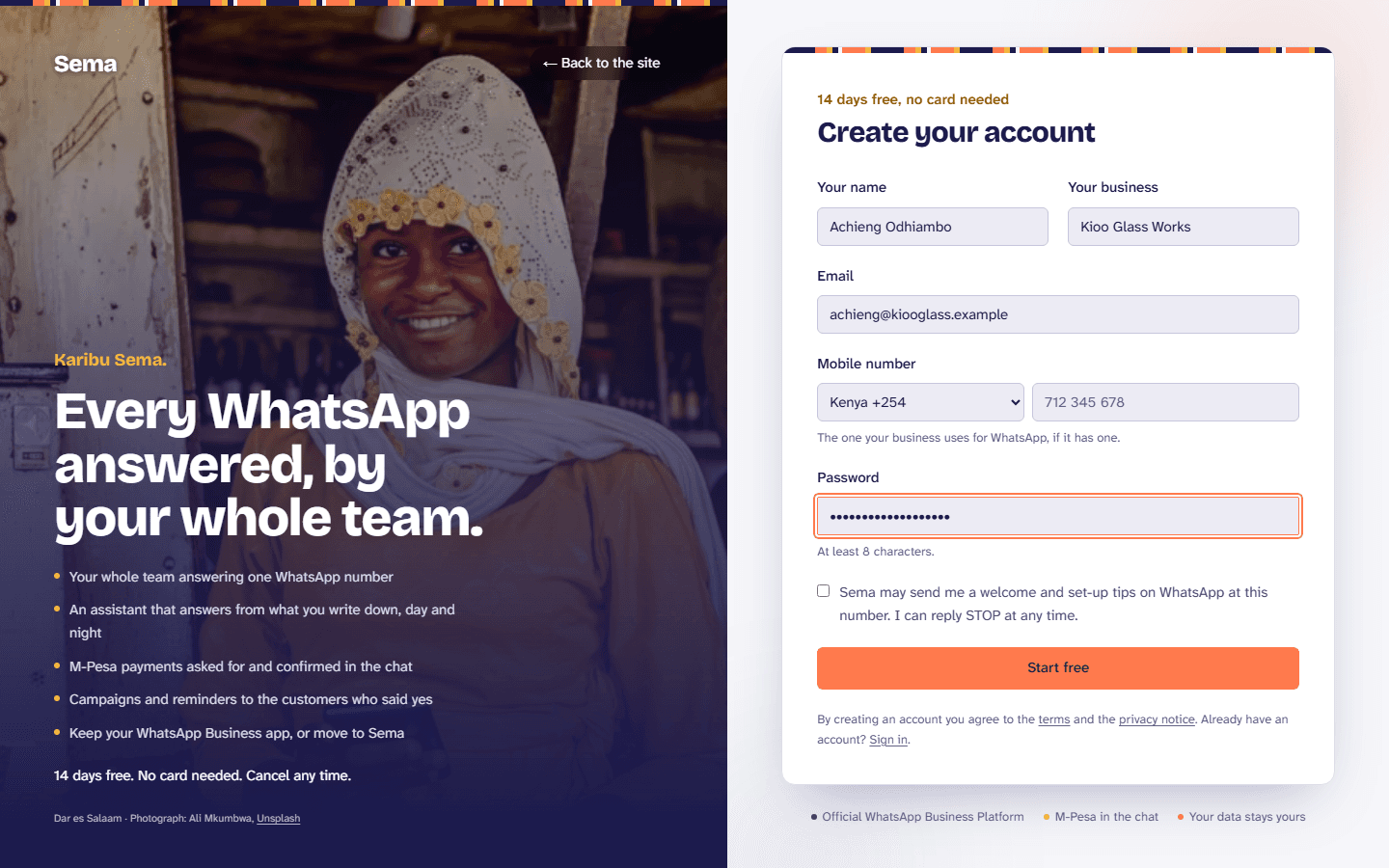
- Go to Start free at the top of any page.
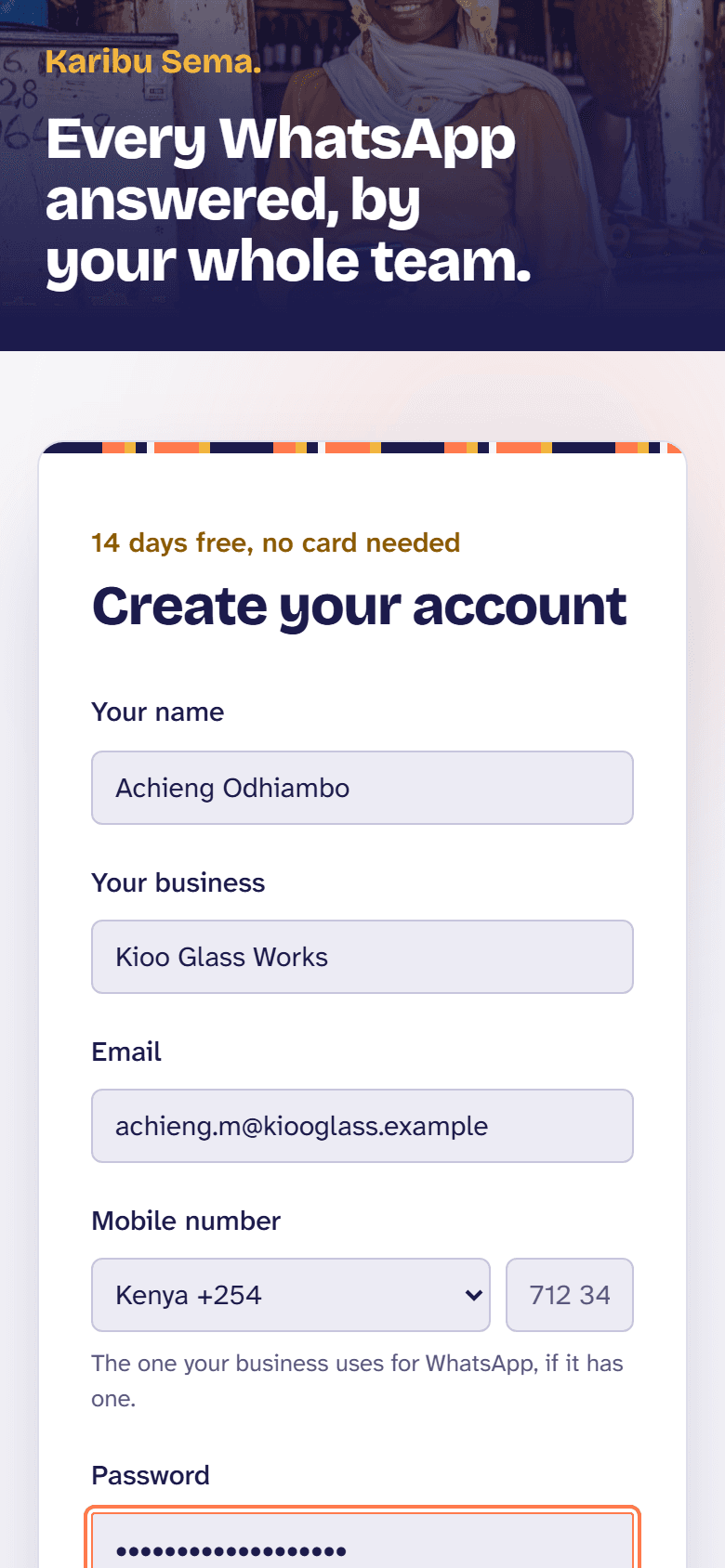
- Give your name, your business's name, your work email and a password of at least eight characters. Your mobile number is optional; give it, and tick the box, if you would like a welcome and set-up tips on WhatsApp.
- Press Start free. The first 14 days are a free trial, and no card is needed.
Confirm your email
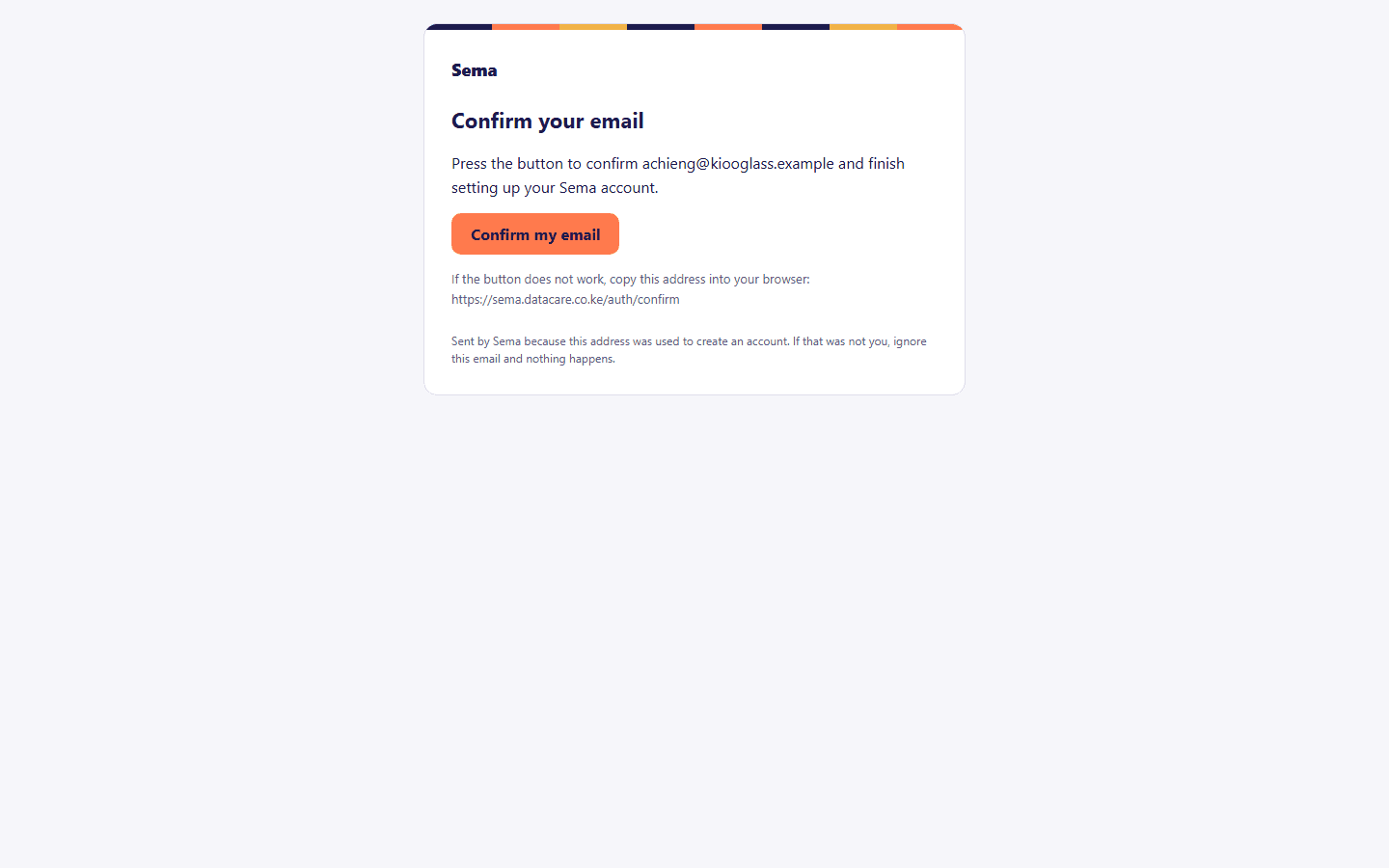
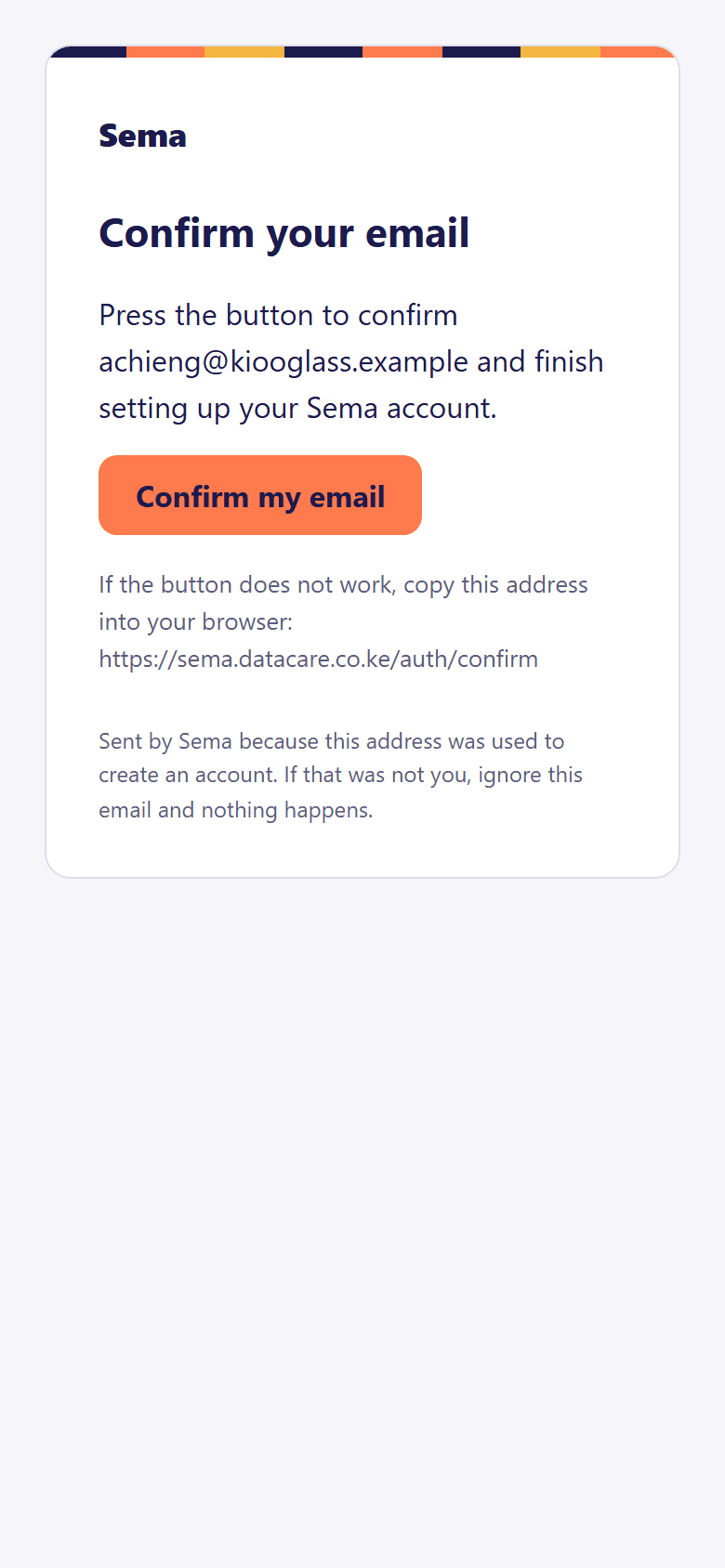
Sema emails the address you gave. Open it and press Confirm my email, then sign in. Nothing within a few minutes? Look in your spam folder.
Turn on two-factor sign-in
Recommended, and a minute's work: an authenticator app on your phone gives a six-digit code that Sema asks for after your password.
- Scan the code with the app, or type in the key under it.
- Type the six digits the app shows and press Turn on two-factor sign-in.
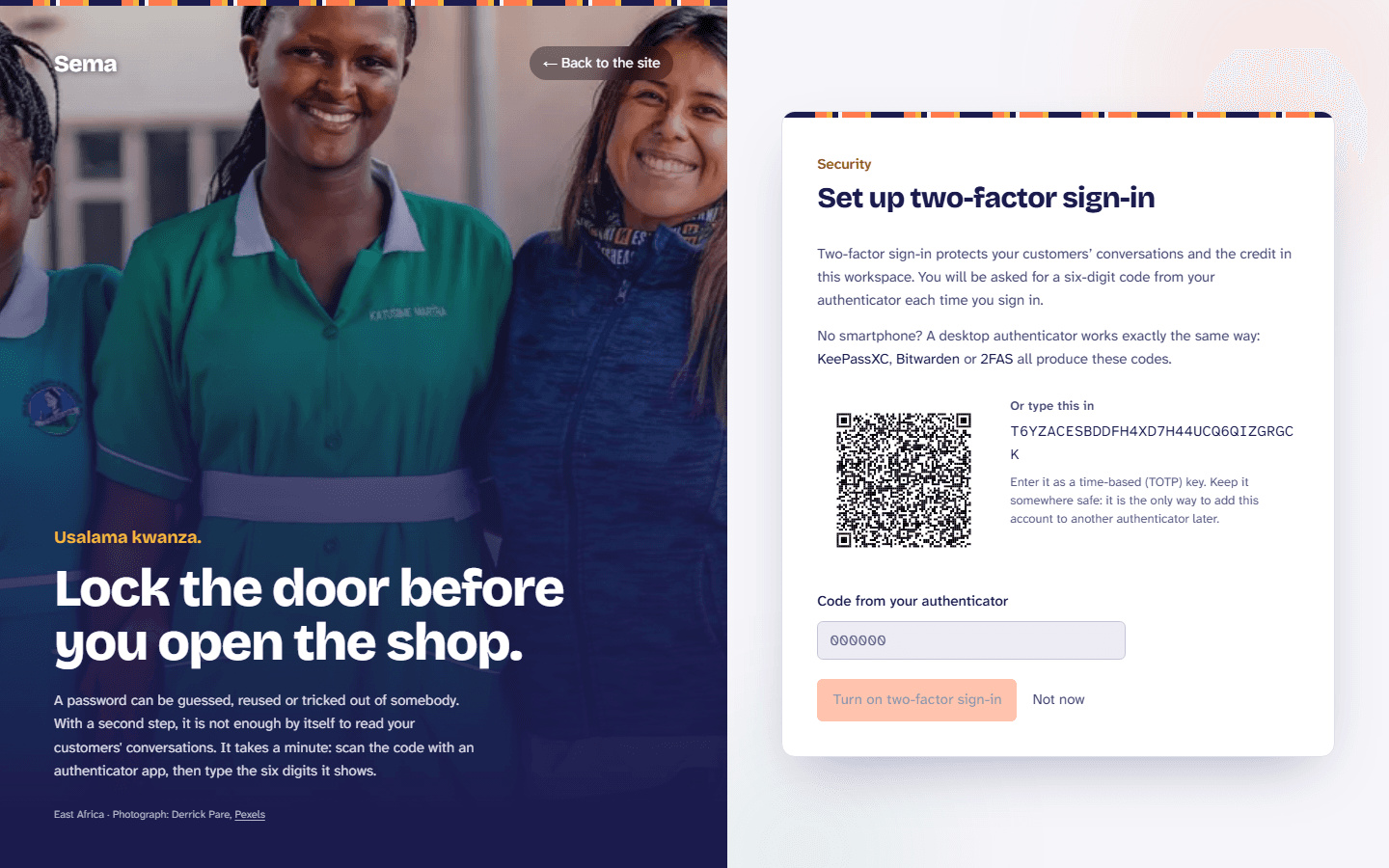
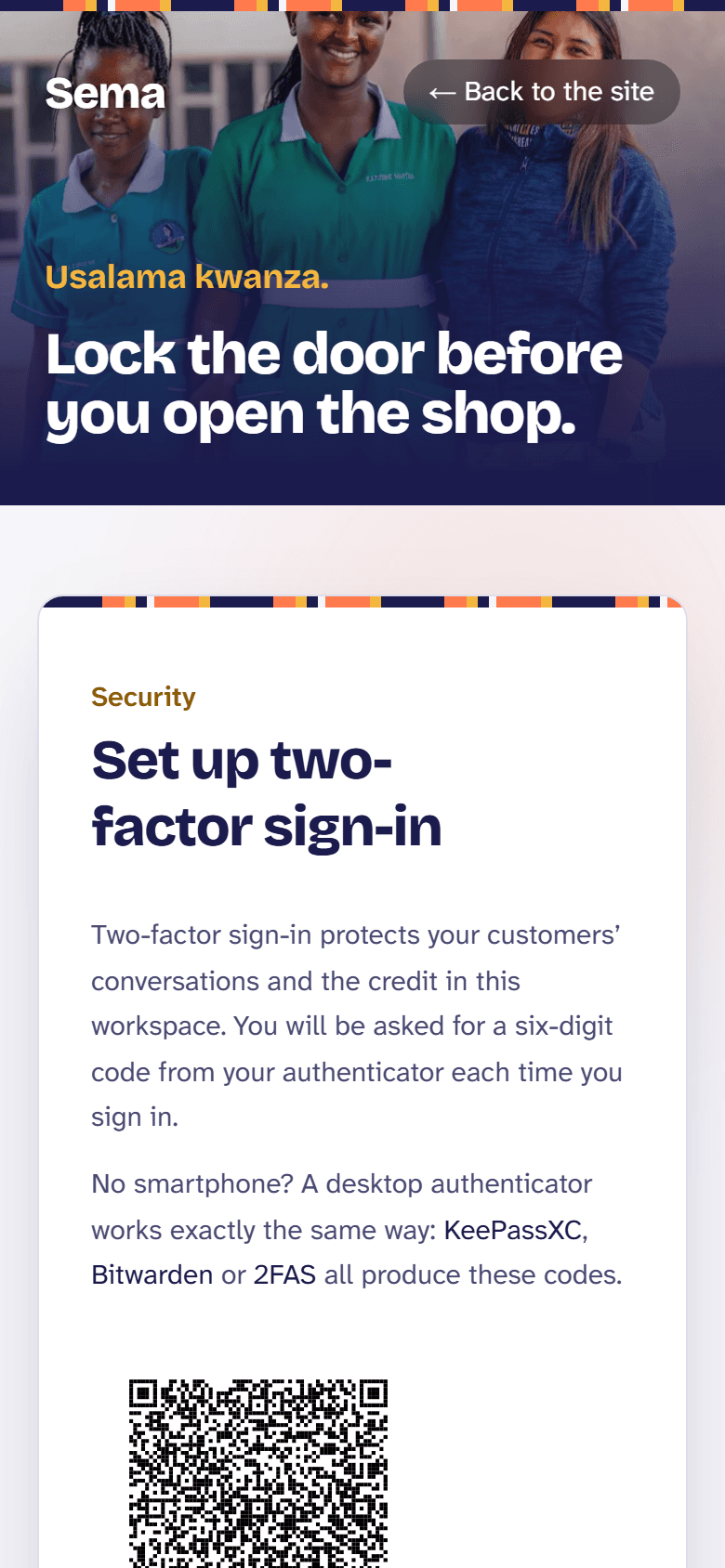
Not now leaves it for later; it is in Settings → You whenever you want it. More in setting up two-factor sign-in.
Name your workspace
Your workspace is your business in Sema. Its name is already your business's; choose its address (sema.datacare.co.ke/your-address), where you operate, and what kind of organisation it is, then press Create workspace.
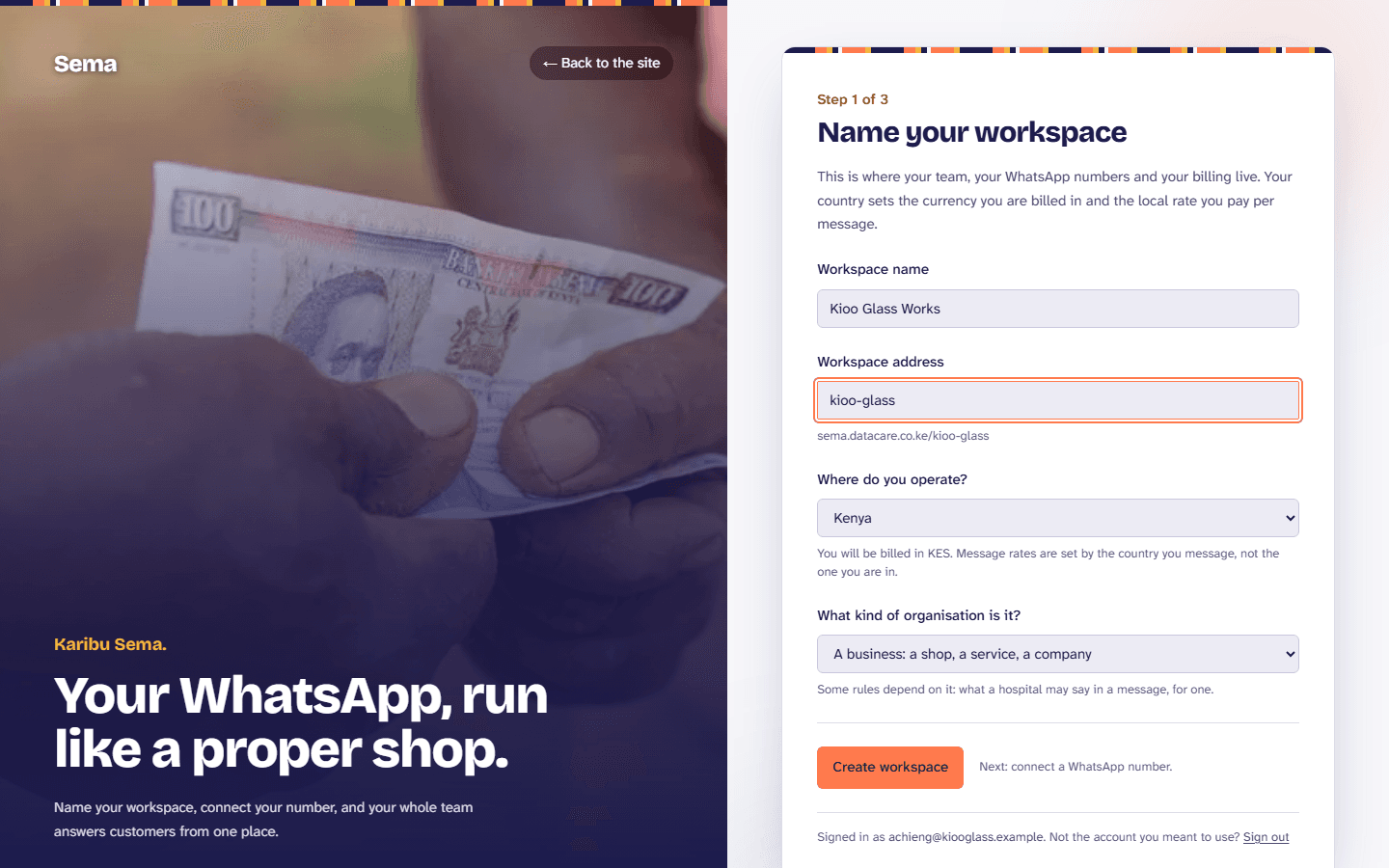
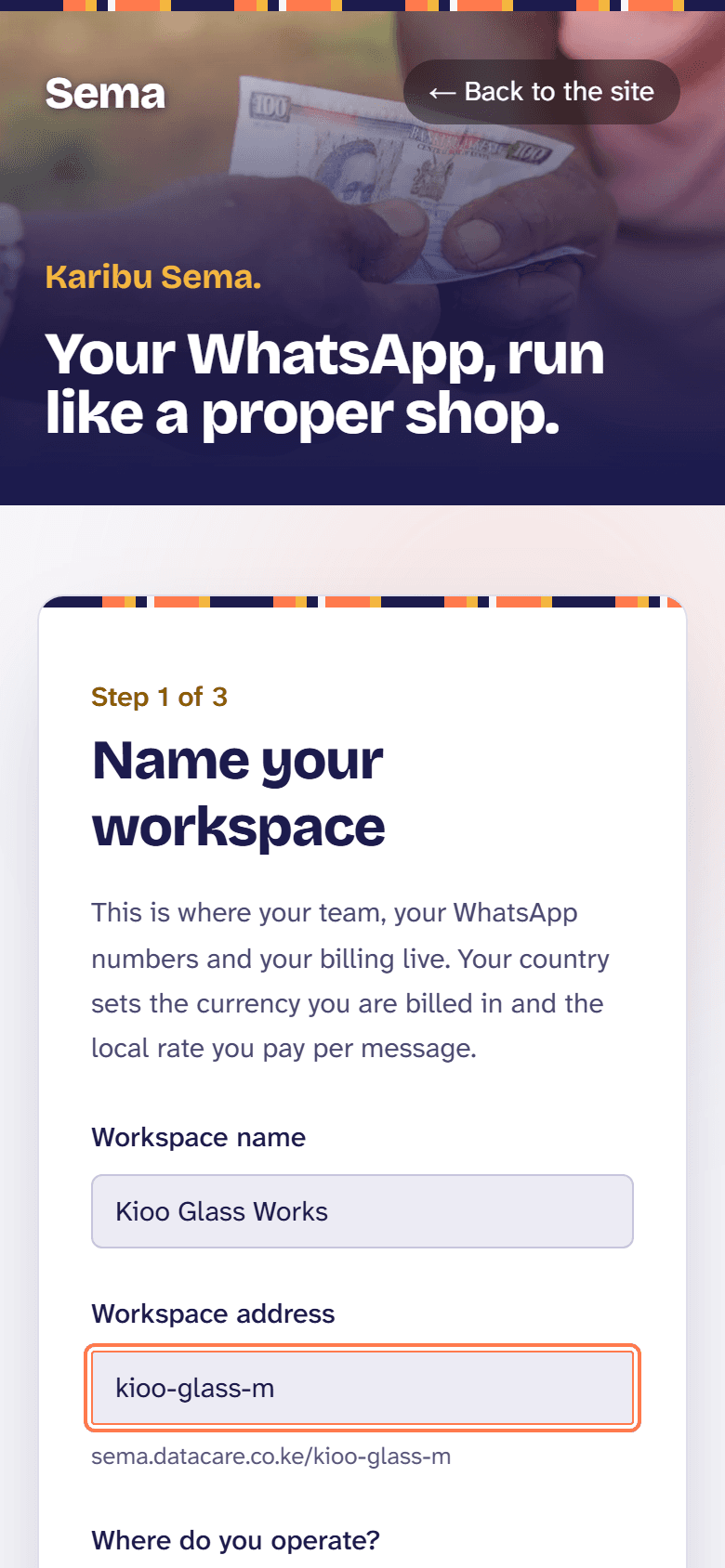
Follow the set-up guide
Five short steps: your business (from your website or a few questions), what your assistant knows, trying it as a customer, how it writes, and connecting WhatsApp. Skip any of them with Skip for now; Getting started keeps what is left.
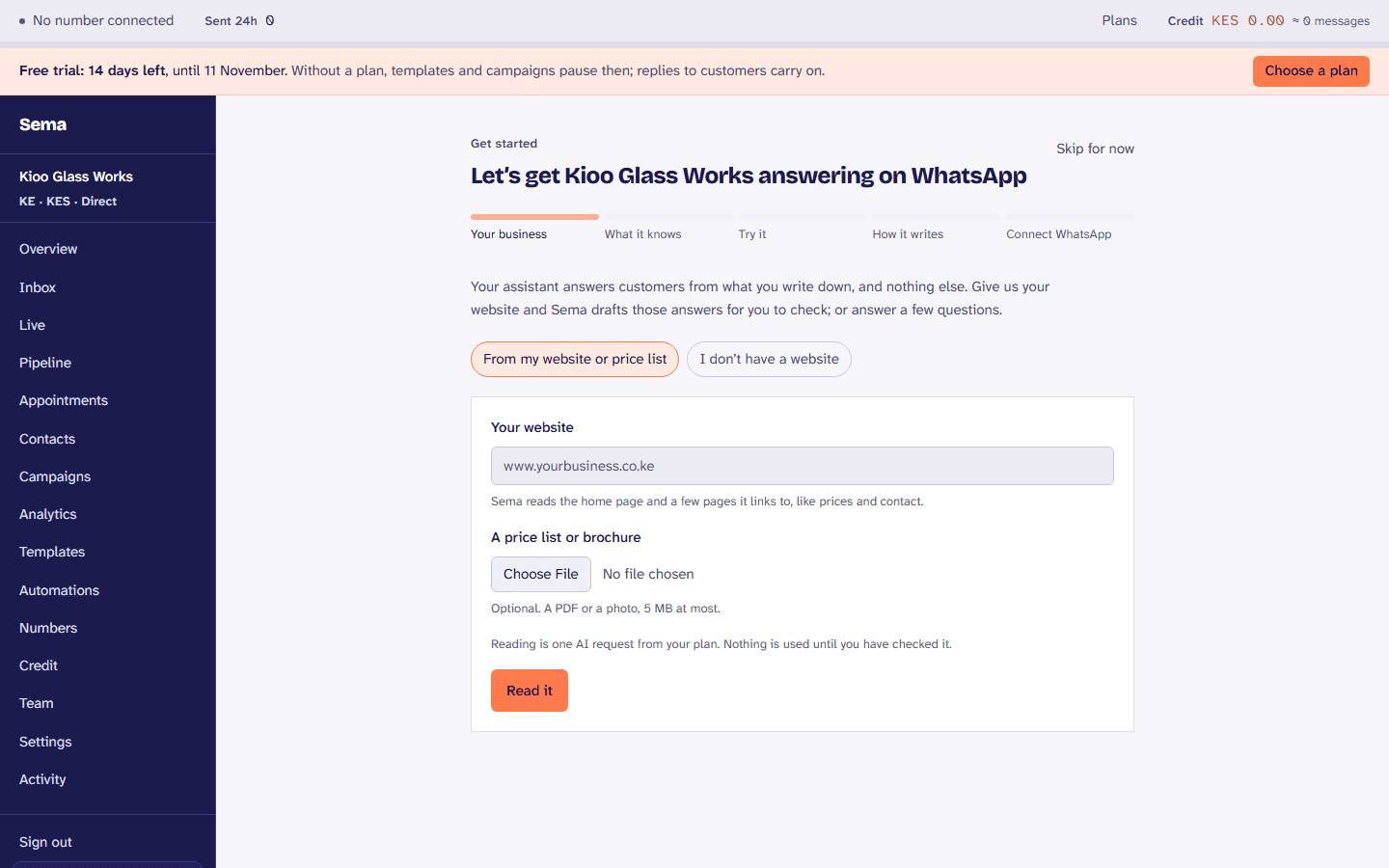
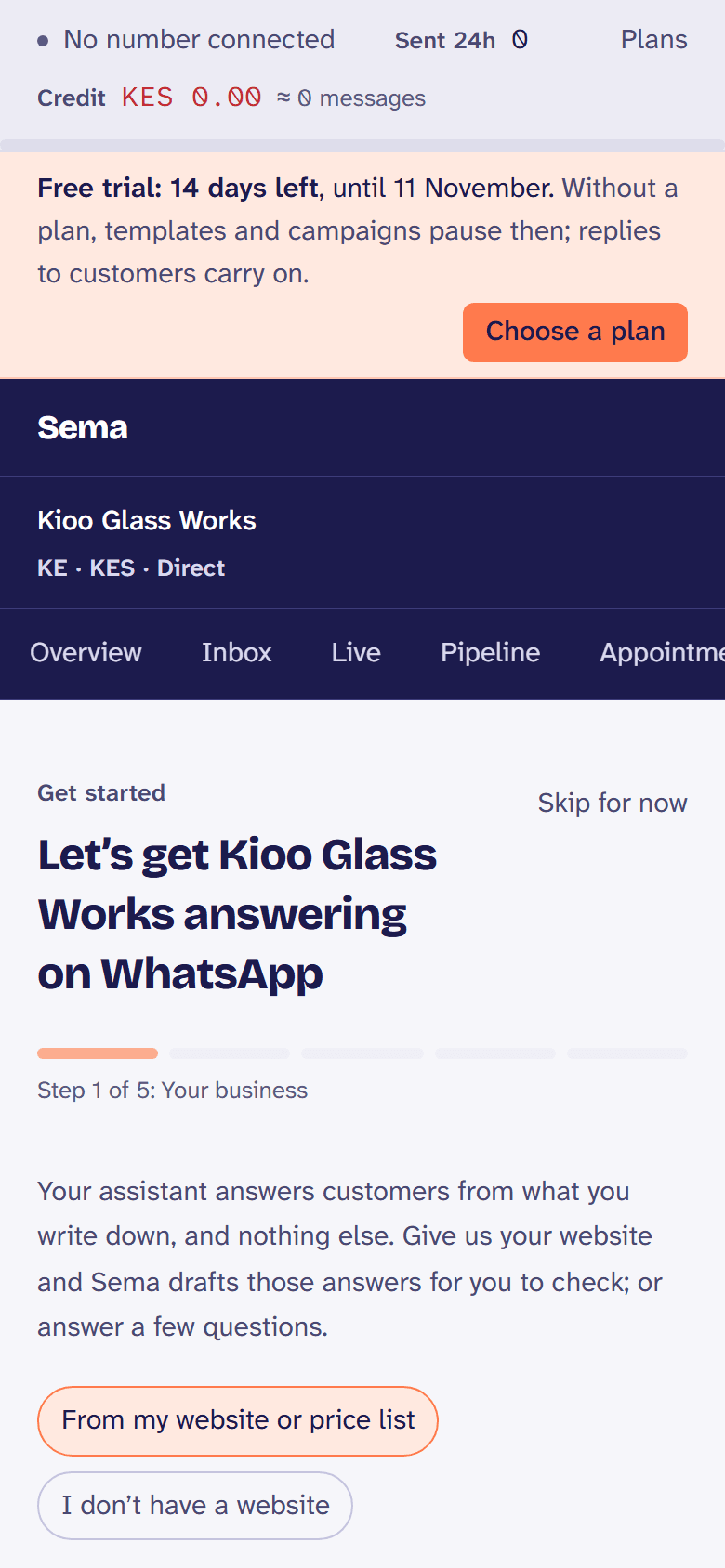
Each step in full: the set-up guide.
Connect your number
- Open Numbers and press Connect a number. Meta's own window opens over Sema.
- Sign in to Facebook, choose or create your business, and choose or create its WhatsApp Business account.
- Give the display name and the number, and type in the code Meta sends to it.
- Allow what Meta asks for, and finish. Sema shows Connected.
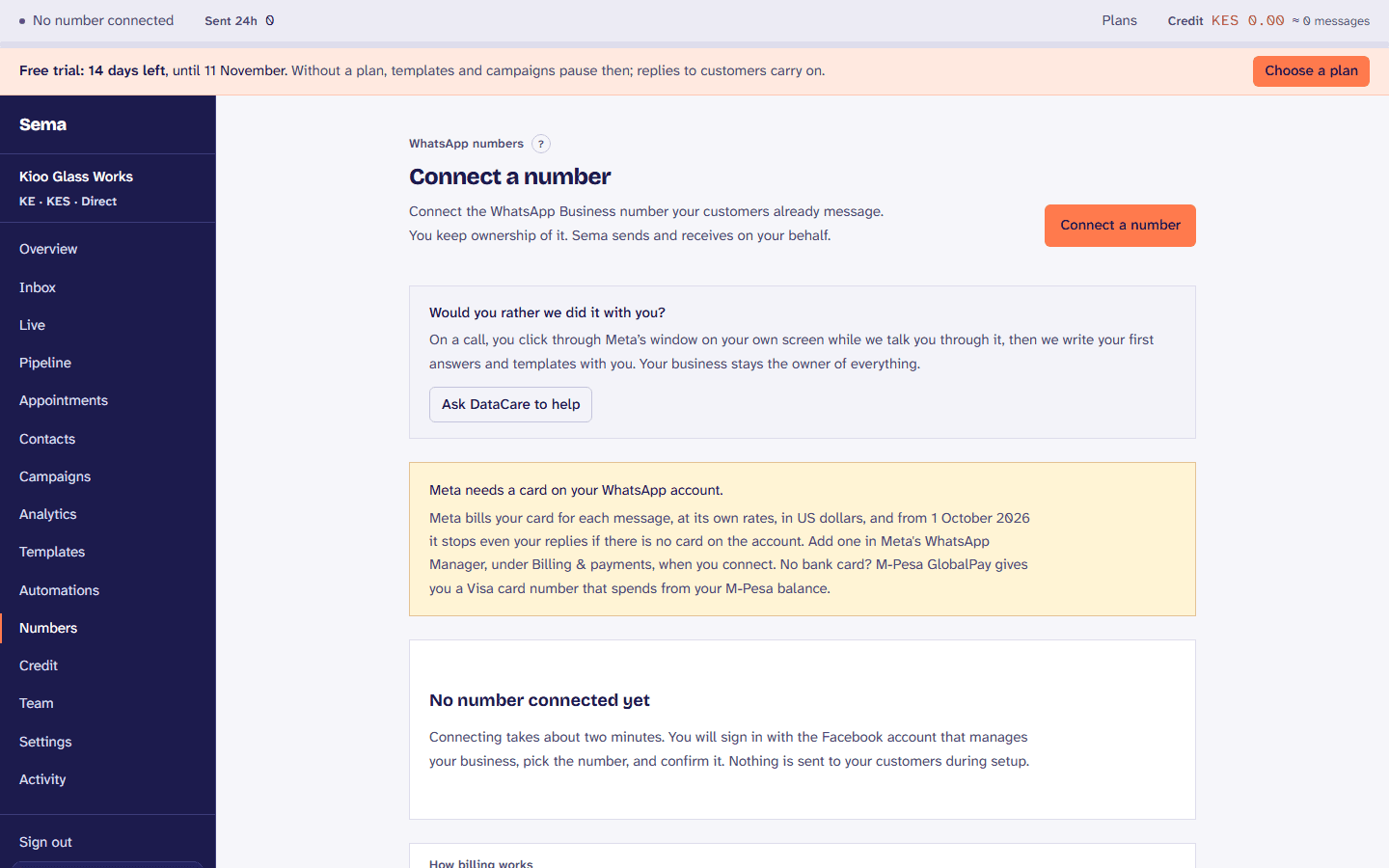
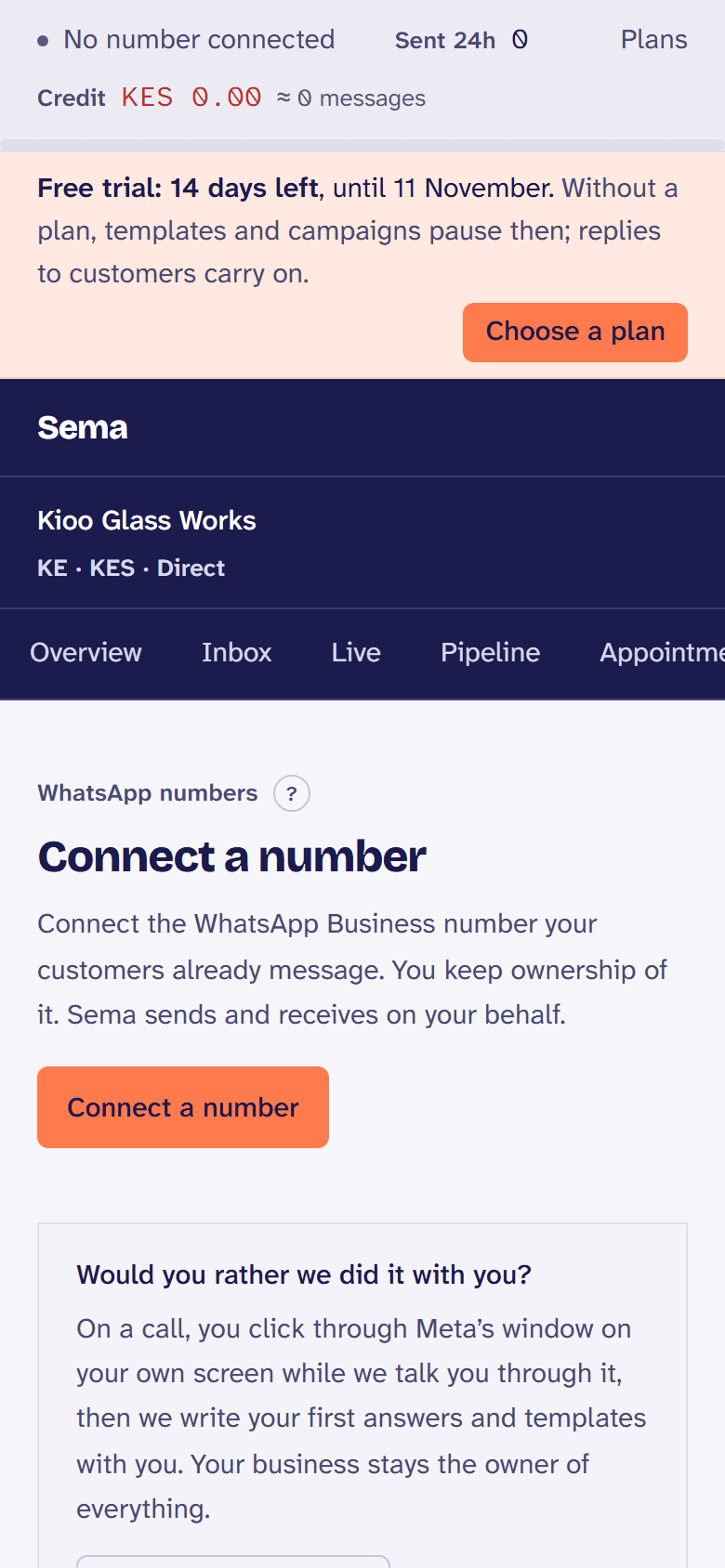
Rather not do it alone? Ask DataCare to help and we do it with you on a call. Keeping your WhatsApp Business app, a number with no spare line, and the card Meta asks for are all in connecting a number.
Your name, and being verified
Meta reviews the name customers see on your messages, and verifying your business with Meta lets you ask for the Official Business Account badge. Numbers shows each, ticked when done, with where to do what is not.
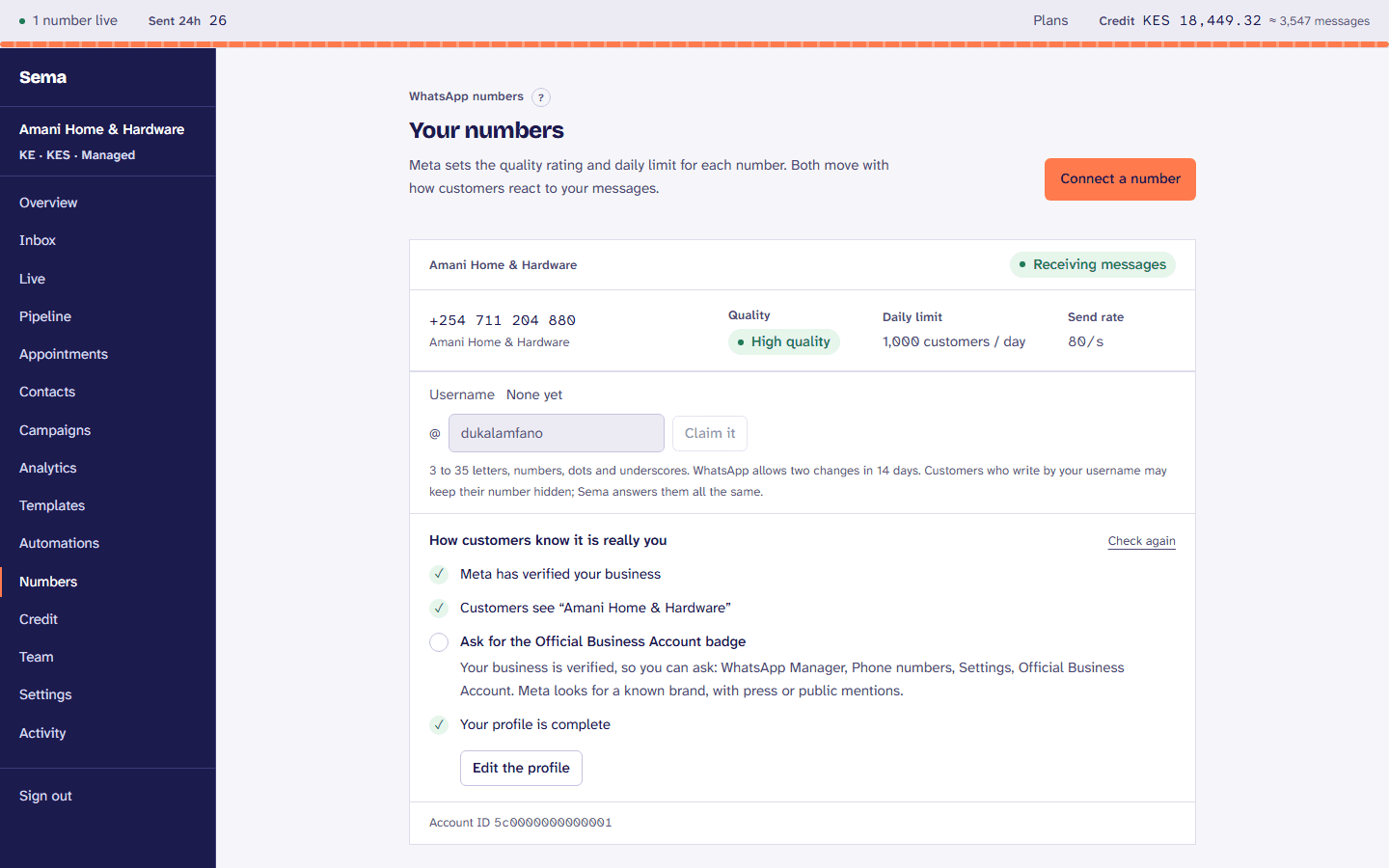
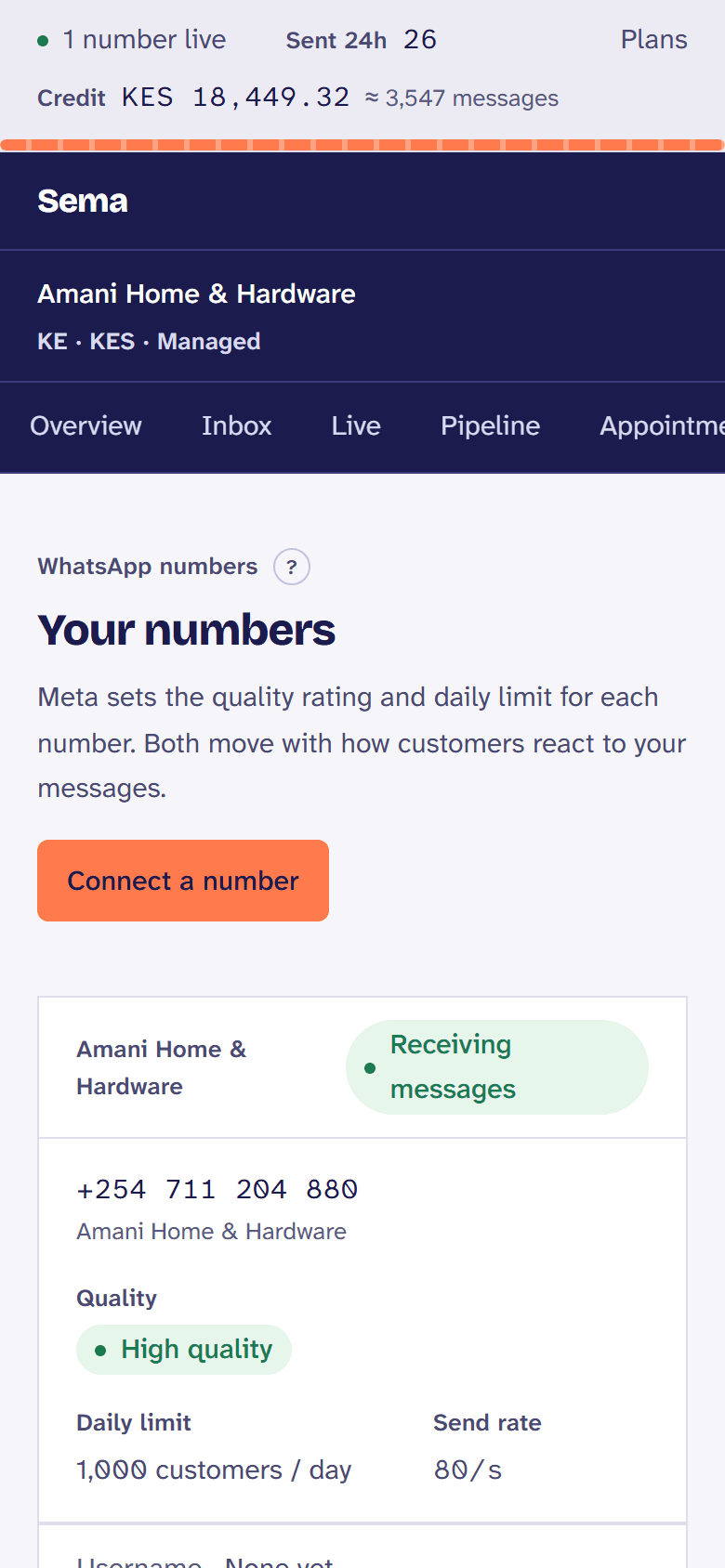
More in what the Numbers page tells you.
Write your first template
To write to a customer first, you need a template Meta has approved. In Templates, press Write a template, or start from the template library. The words go on the left, the message as the customer will see it on the right, and anything Meta would refuse is said as you type. Save it, then send it to Meta from the list; most are approved within minutes.
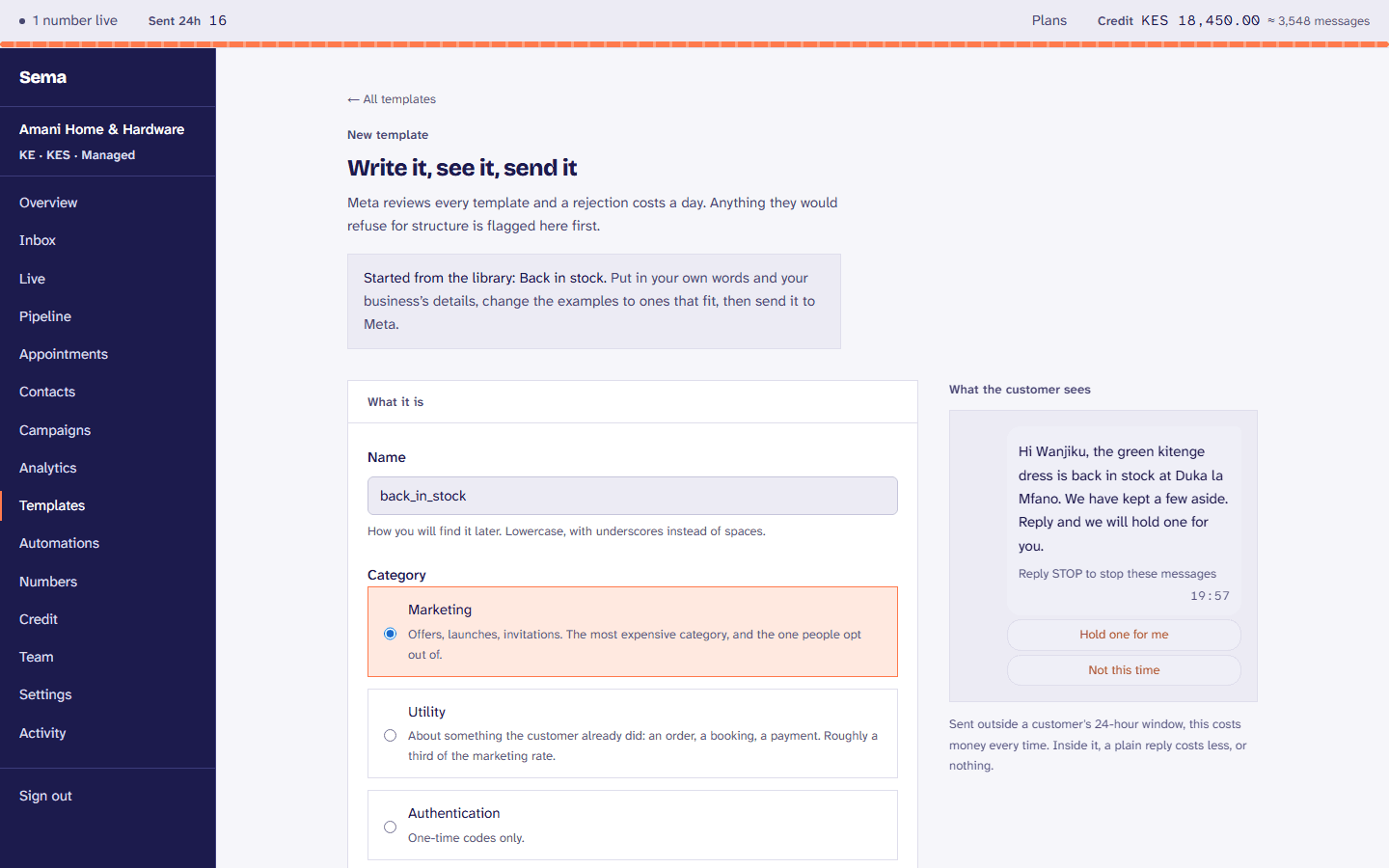
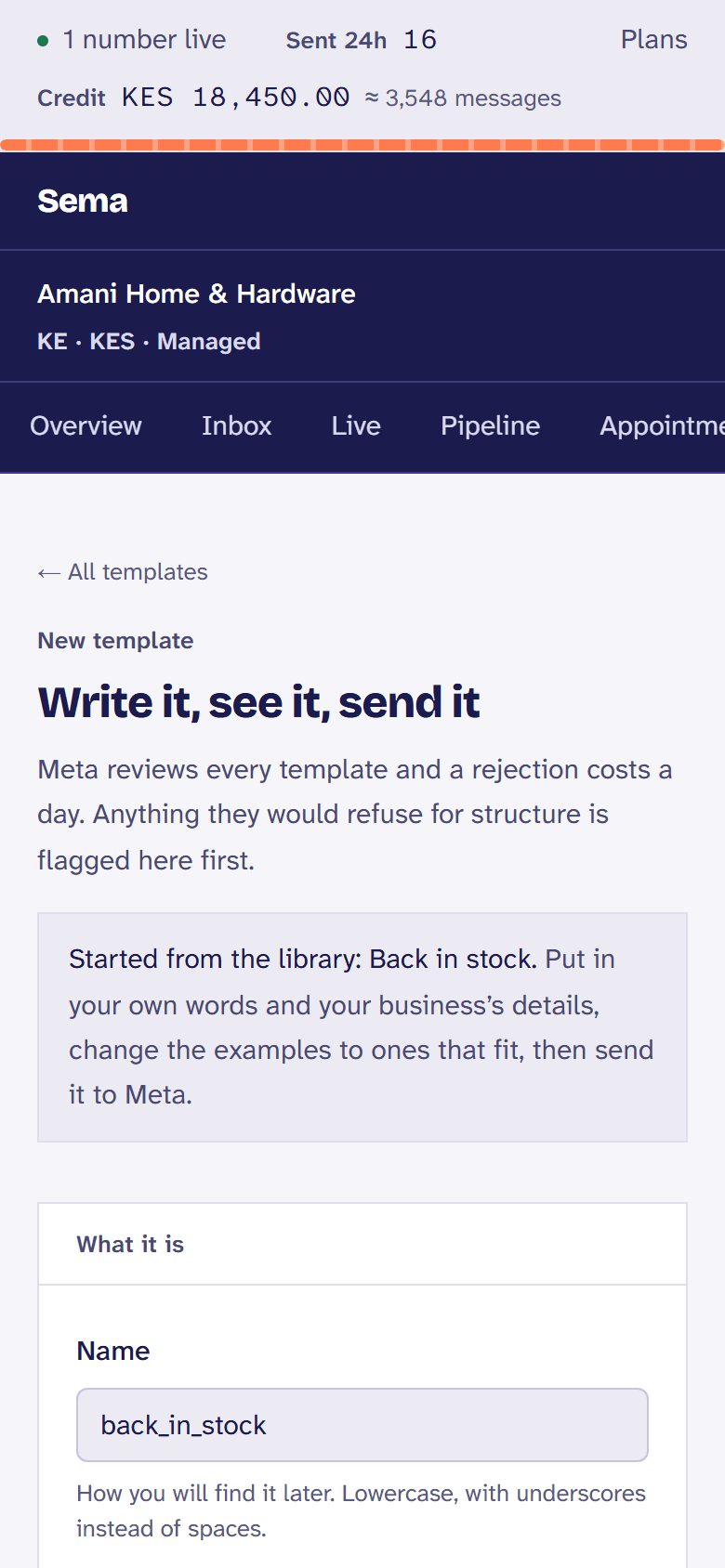
More in writing one Meta will approve.
Invite your team
In Team, under Invite a teammate, give their email and their role, and press Create invitation. They get an email; the link is shown once too, to hand over yourself.
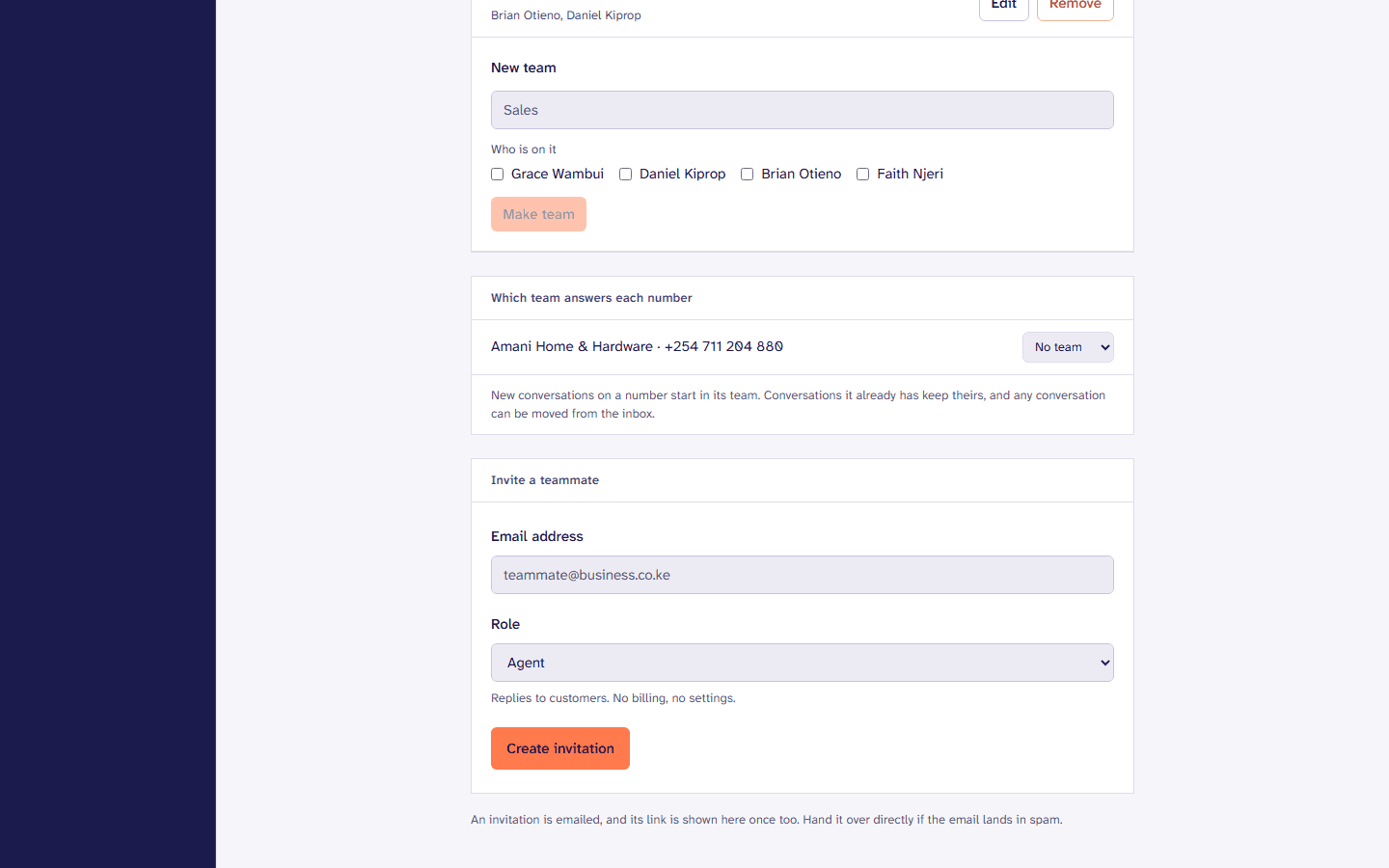
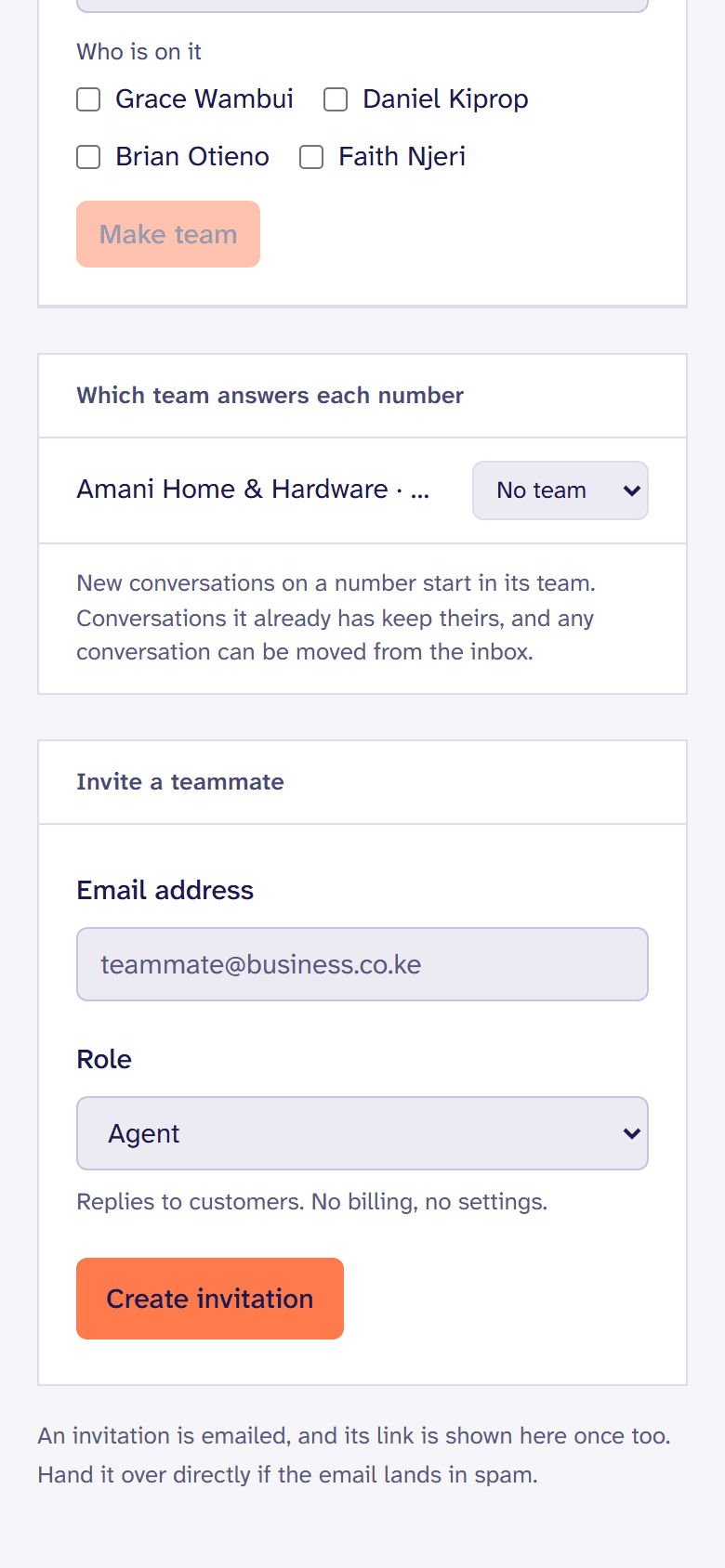
What each role may do: roles.
Top up by M-Pesa
Messages are paid from your Sema credit. In Credit, give an amount and the M-Pesa number to pay from, press Add, and approve the prompt on your phone. Or pay by card through Paystack.
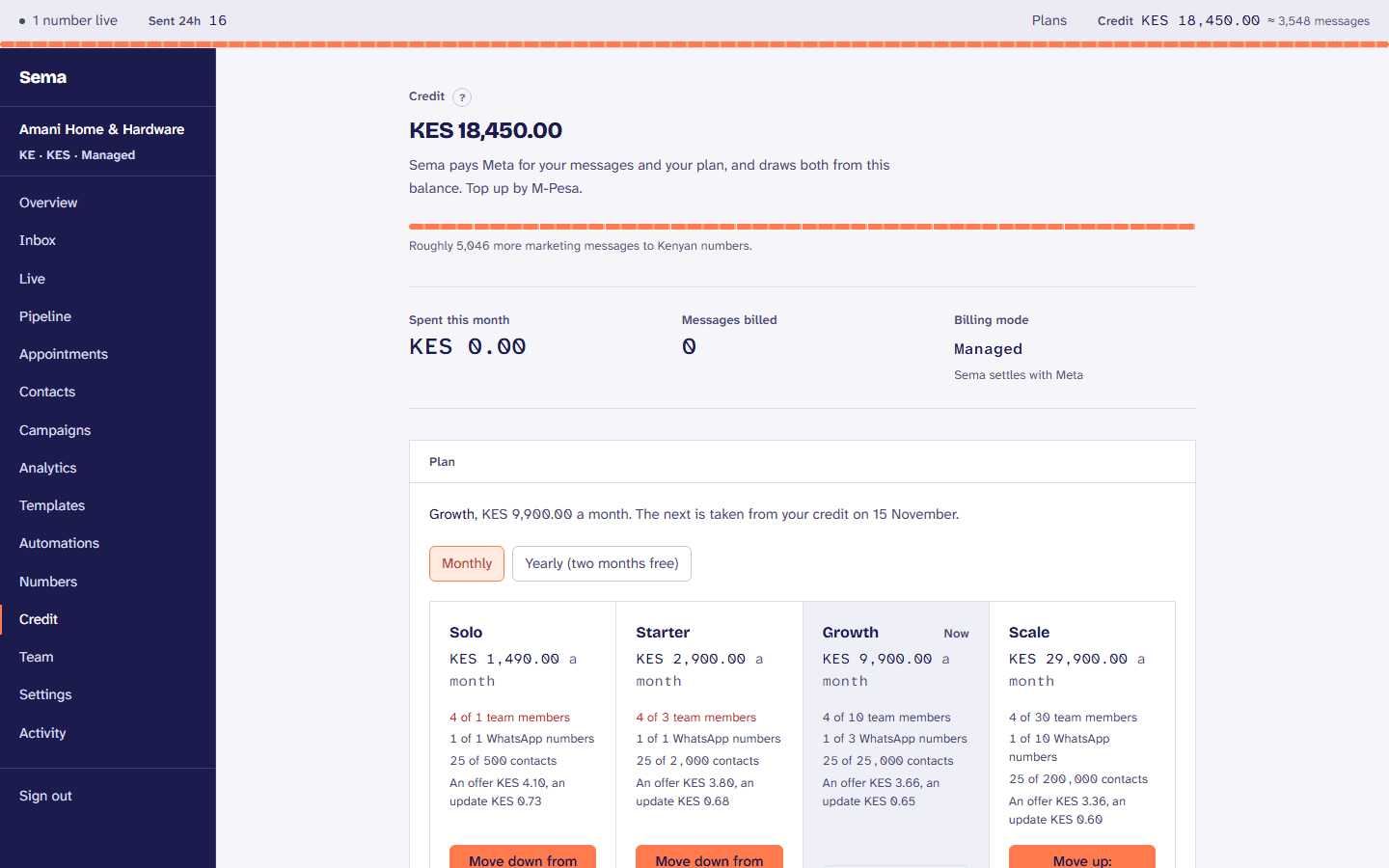
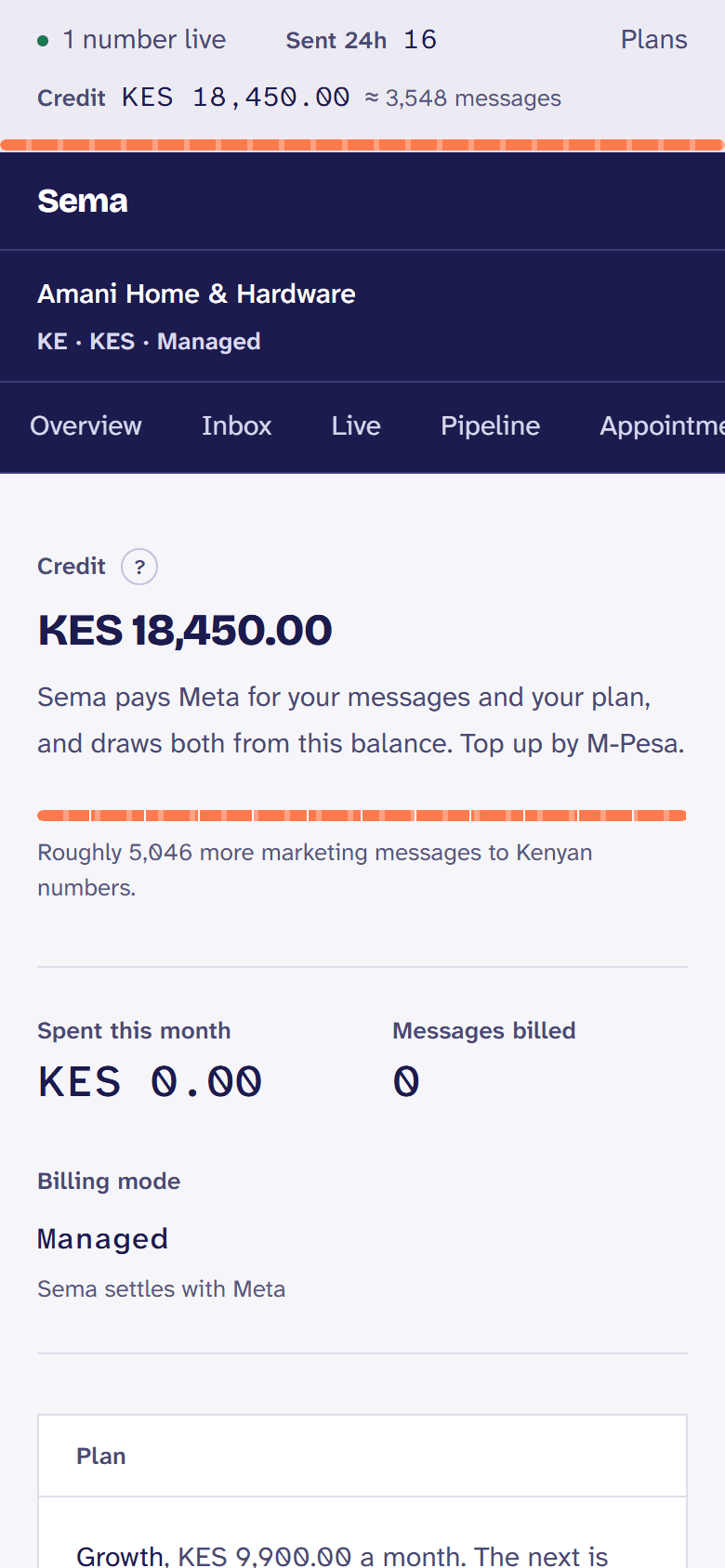
More in topping up.
Send your first campaign
In Campaigns, press New campaign: a name, an approved template, what goes in its gaps, and who receives it. Sema says how many people it will reach (only those who agreed) and what it will cost before you send it, now or with Send later.
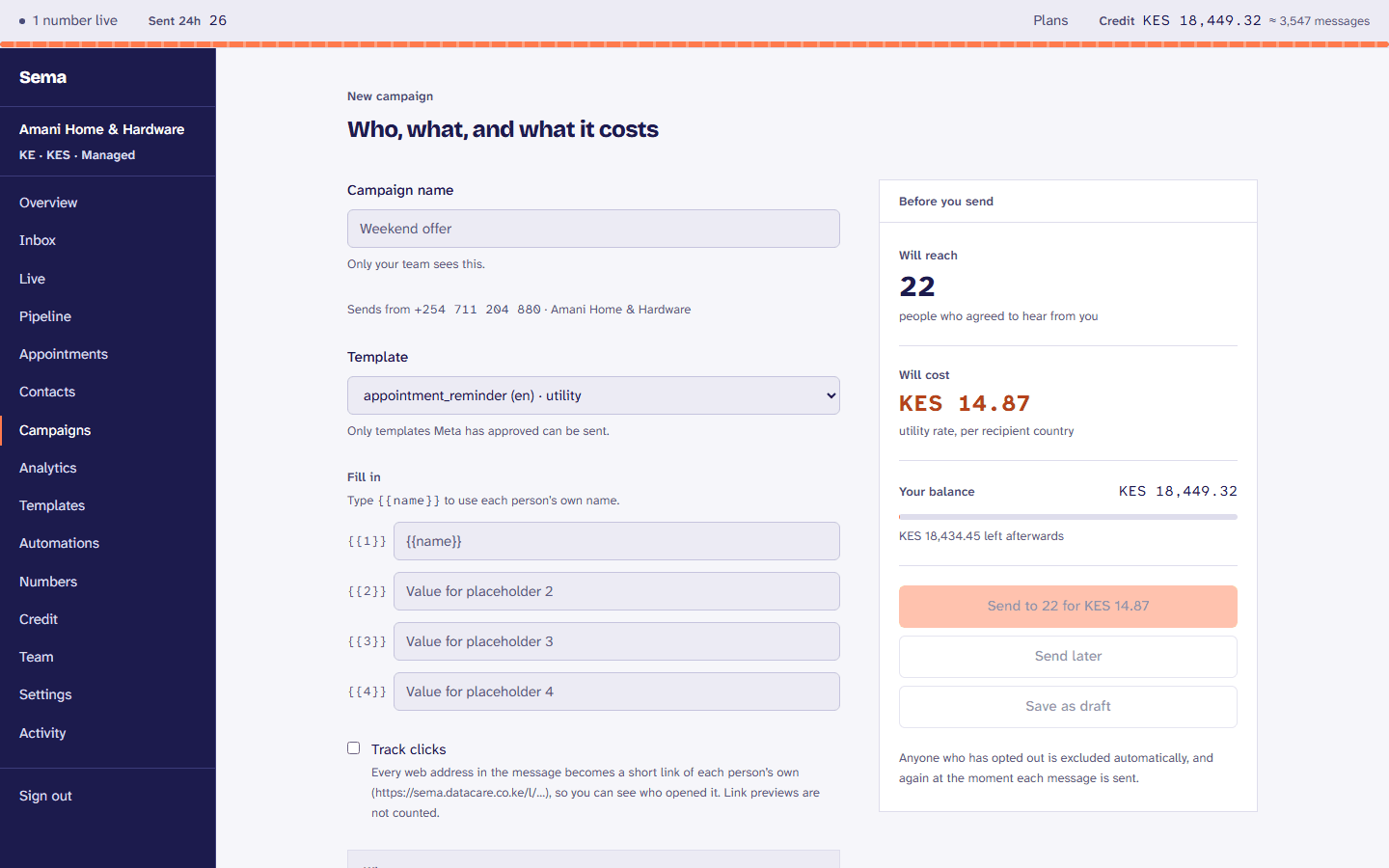
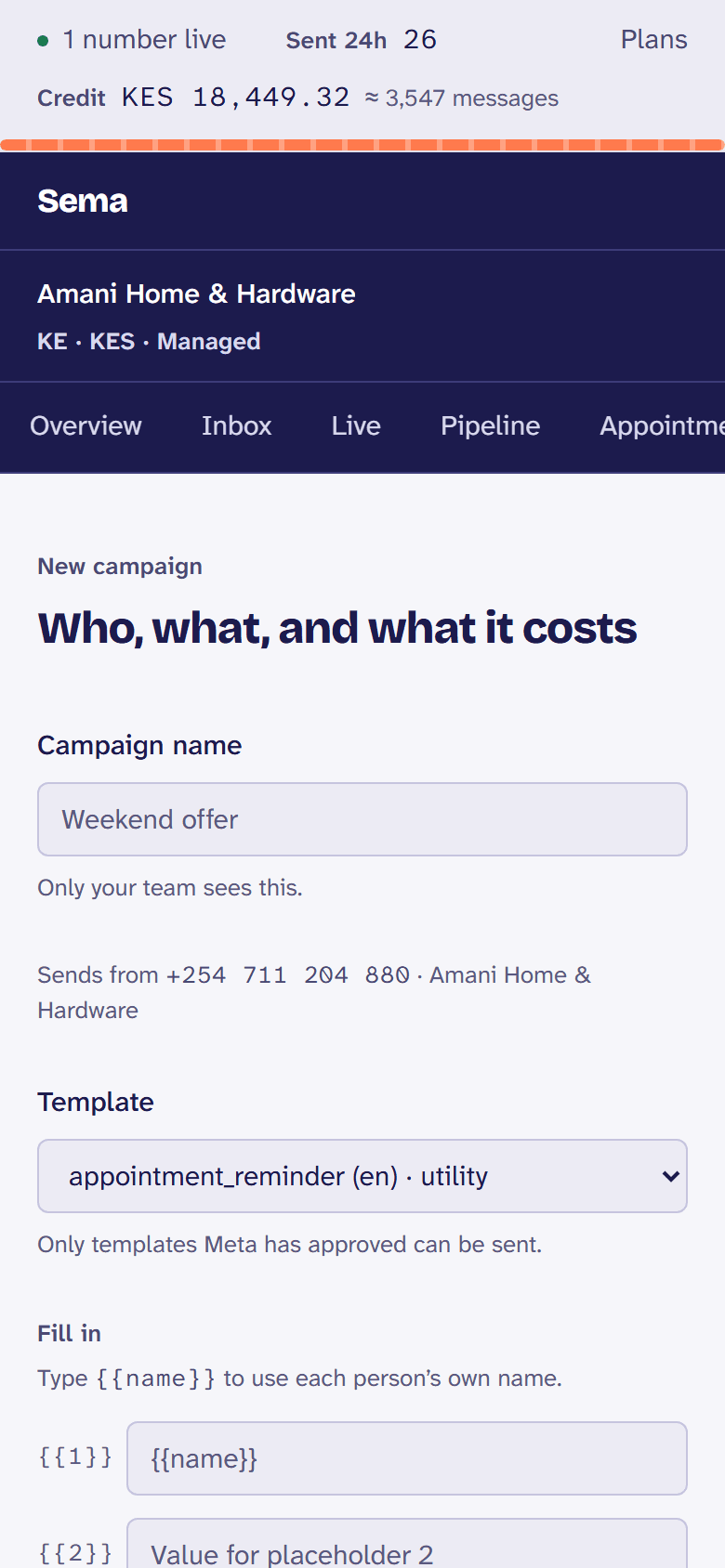
More in sending a campaign.
Not what you needed? Ask us.